Spiritstead Steam Deck Controls & Tips
Playable on Deck — with layout habits that reduce friction
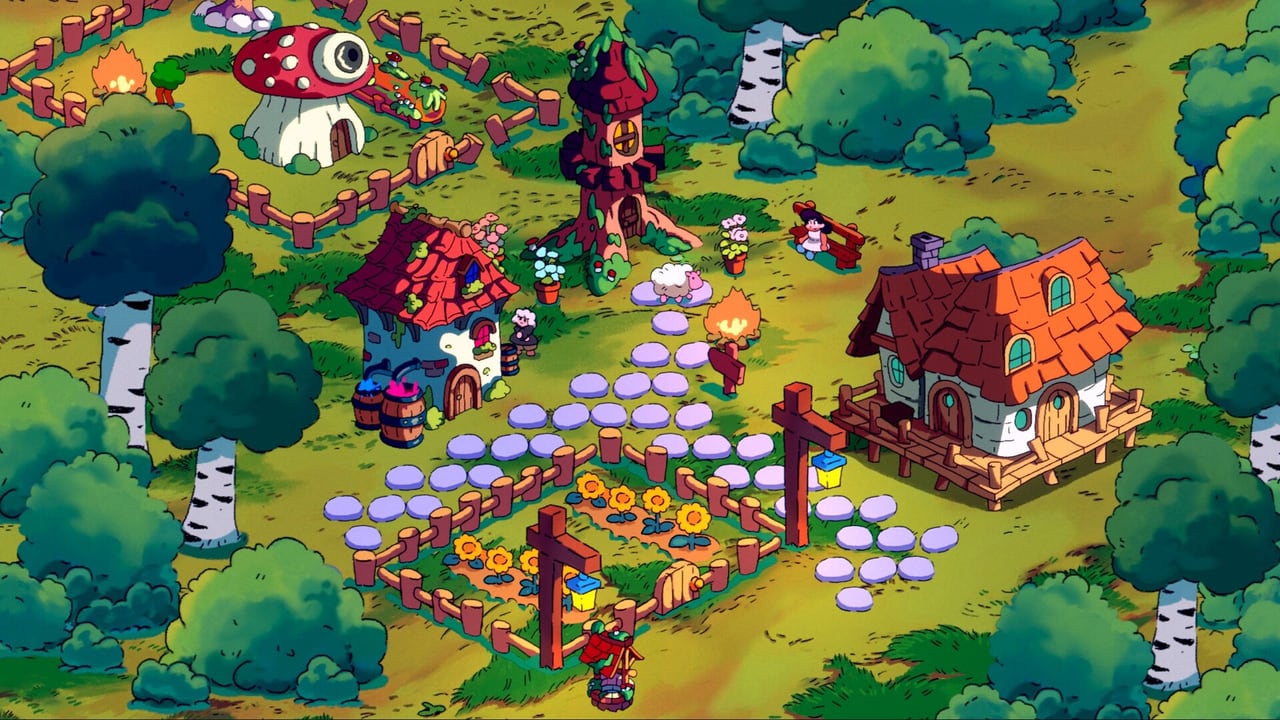
Spiritstead is Steam Deck playable with modest system requirements (2 GB RAM, integrated-class GPUs), and community reviews already tag sessions as played mostly on Steam Deck. That does not mean handheld feels identical to mouse-and-keyboard: building rotation and precise placement can feel clunky on trackpads compared to a mouse, especially when Snow expansion widens the map and you are constantly zooming, rotating, and dragging villagers across biomes. This guide collects practical Deck habits so you spend less time fighting controls and more time growing Hyrule — or whatever you named your save.
What works well on Steam Deck
Strengths players report:
- Short sessions — Adventure’s 6–8 hour arc splits naturally into commute-friendly chunks.
- Low storage — About 137 MB install leaves room on small SSDs.
- Cozy pacing — No twitch combat; drag-assign tolerates slightly imprecise input if happiness stays stable.
- Verified-friendly UI scale — Menus remain readable at default Steam Deck resolution when zoomed appropriately.
Treat Deck as a valid primary platform for demo and full release, not a fallback — just expect layout rework more often than on PC.
Rotation and placement friction
The PC default R rotate and ghost placement assume fine cursor control. On Deck:
- Use trackpad mode or right stick as mouse (whichever feels sharper in Steam Input) for rotation clicks.
- Rotate before confirming every production building — fixing rotation post-placement forces extra F reposition steps.
- Build orthogonal grids (straight roads, boxy districts) to minimize diagonal camera adjustments.
- Avoid tight clusters of log cutters, coops, and bonfires until you are comfortable with zoom macros.
If a building lands one tile off, F reposition is your friend — same as PC, but confirm the Deck binding in Steam Input if you remapped keys.
Camera and zoom habits
WASD panning maps to left stick on Deck; zoom maps to triggers or trackpad scroll depending on profile. Recommended habits:
- Zoom out before territory purchases to see prop clusters at fog borders.
- Zoom in only for drag-assign, then zoom back out to monitor food/happiness hover stats.
- Pan ahead of villagers you drag long distances — Snow biomes exaggerate walk time.
Scouting ties directly to Territories — Deck players lose more gold buying the wrong tile because camera scouting was skipped.
Drag-assign on trackpads
Villager dragging is the heart of Spiritstead. On Deck:
- Start drags with a firm press; light taps sometimes select without assigning.
- Drag to the center of building hitboxes — bonfires and warehouses have generous targets, narrow spirit buildings do not.
- When happiness quests pop, pause production drags and send villagers to bonfires first; angry villagers refuse work, which feels like input failure but is mood failure.
Pair drag sessions with the Happiness Checklist so Deck players catch mood drops before they blame controls.
Steam Input suggestions
Every player prefers different profiles, but starting points help:
| Action | Deck suggestion |
|---|---|
| Camera pan | Left stick |
| Mouse cursor | Right trackpad (higher sensitivity for placement) |
| Zoom | Right trigger / trackpad edge scroll |
| Rotate (R) | Rear paddle or face button within thumb reach |
| Reposition (F) | Adjacent paddle — you use it often mid-expansion |
Export a profile after your first Green Forest hour; Snow maps punish unoptimized bindings.
Layout patterns that reduce rework
Deck-friendly village design:
- Central bonfire hub with production in one direction, houses in another.
- Dual warehouses on the same road spine — fewer cross-map drags.
- Wide roads early; narrowing aesthetics can wait for Creative Mode.
- Flat portal / crystal node pads reserved during expansion, not carved later under pressure.
See Building Planner markdown sections for printable checklists.
Demo vs full game on Deck
The Spiritstead Demo (Steam app 4017850) uses the same control scheme as the August 6, 2026 full release. Test Deck comfort in the free demo before wishlisting the paid app — if rotation still feels rough, switch to PC for blueprinting and keep Deck for relaxed maintenance sessions.
Compare scope on Demo vs Full Game.
When to switch to PC
Consider mouse-and-keyboard for:
- Large Snow biome rewrites with dozens of F moves.
- Spirit hunts requiring precise item placement (Mizzrick weather puzzles).
- Screenshot-heavy Creative tours with constant rotation.
Deck remains excellent for daily quest clearing and spirit shard collection once layouts stabilize.
Related pages
- PC controls hub — full binding reference.
- System requirements — RAM and GPU headroom.
- Map overview — territory scouting.
- Release guide — launch timing and price.
Frequently Asked Questions
Quick answers to the most common questions.
Does Spiritstead run on Steam Deck?
Yes. Minimum specs are modest (2 GB RAM, integrated-class graphics), and Steam reviews already note Deck play. Rotation and placement feel clunkier than mouse-and-keyboard for some players.
Why does building placement feel awkward on Deck?
Fine rotation and ghost placement expect mouse precision. Use trackpad mode, rotate before confirming builds, and prefer straight road grids to reduce diagonal camera work.
Does F reposition work on Steam Deck?
Yes, with the same function as PC. Map F to an easy Steam Input button because expansion sessions use reposition frequently.
Should I play the demo on Deck first?
Recommended. The free demo tests Adventure and Creative with identical controls, letting you tune Steam Input before the full game launch.
Any layout tips specific to Deck?
Centralize happiness buildings, keep warehouses on one road spine, and leave flat pads for portals and crystal nodes before decorating.